
The Assistant is a versatile widget designed to provide your users with seamless, non-intrusive support. While onboarding content is often most vital during a user’s first few days, the Assistant remains a permanent resource that users can access at any time—directly on the page—without interrupting their workflow.
Available Resources
You can populate your Assistant with several types of content:
Help Articles: Link existing articles or create new ones directly within the Knowledge Base editor.
URL Links: Direct users to external documentation, blogs, or support portals.
Product Tours: Launch interactive walkthroughs to guide users through specific features.
How to Create an Assistant
Log in to your Usetiful account.
Navigate to the Assistant tab on the overview page.
Click the Create Assistant button.
To populate your widget, click Add Resource and select the content type you wish to include.
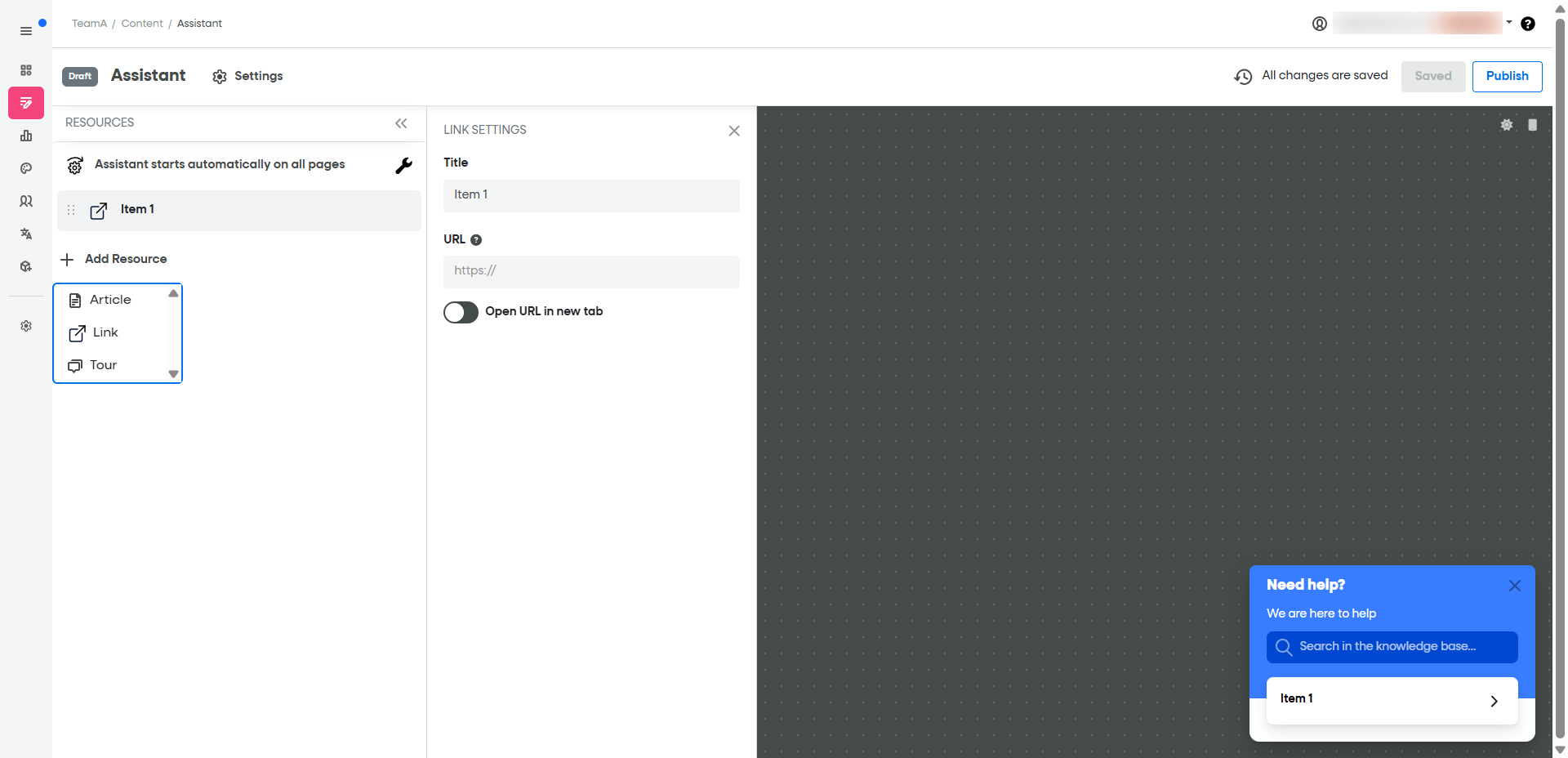
Configuring Assistant Settings
1. Page Targeting
Use targeting to define exactly which pages the Assistant should appear on. This allows you to show different resources depending on where the user is in your application.
2. Button Customization
Under the "Show Usetiful button" settings, you can:
Choose whether the Assistant is accessed via a floating button.
Position the button in the bottom-right or bottom-left corner.
Customize the Button Name to match your brand’s voice.
3. Setting Priority (Premium & Enterprise Plans)
If multiple Assistants target the same page, the Priority setting determines which one appears. The Assistant with the highest priority takes precedence.
Example: You may have a "General Assistant" for all pages and a "Billing Assistant" specifically for the pricing page. By giving the "Billing Assistant" a higher priority, users will see the most relevant support content for that specific page.
Note: The Assistant will only appear when there is no active Tour in progress, no auto-played Tour, and no active Checklist on the page.
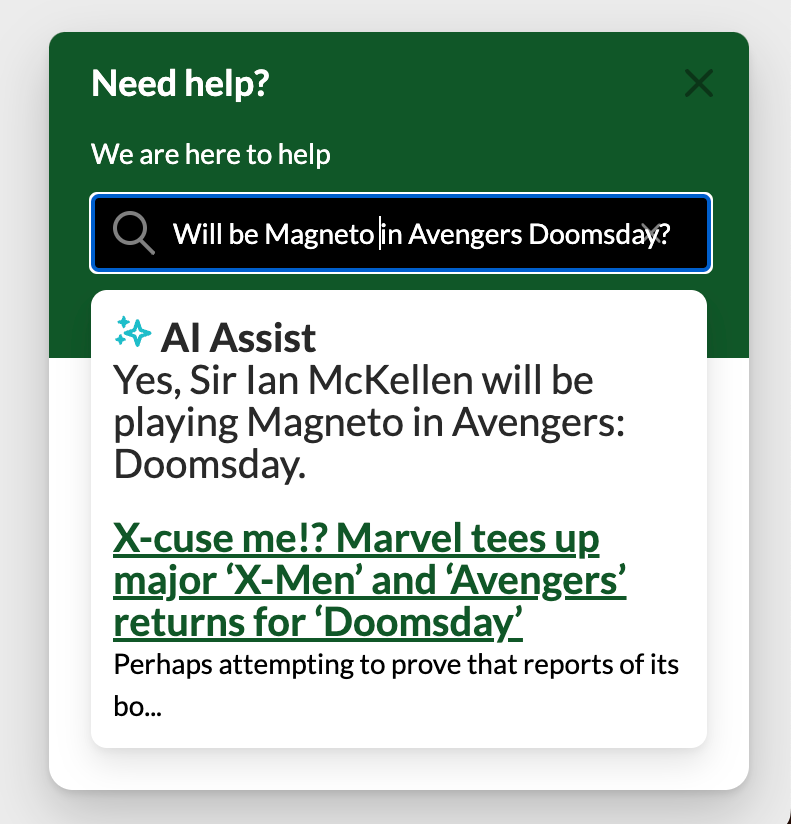
4. Enable AI Assist ✨
Supercharge your support with AI-powered search. Instead of browsing every article, users receive concise, summarized answers instantly.
How to enable: Go to Properties in your Assistant settings and toggle on Enable AI.
Users get fast responses with the option to click through to the full article for more detail.
Organizing and Identifying Your Assistants
To keep your dashboard organized, especially when cloning widgets, use these two naming fields:
Assistant Name: An internal label visible only to editors. Use this to distinguish between versions (e.g., "Main App - V2").
Assistant Visible Title: The header text that the end-user sees at the top of the widget.
| Field | Visible To | Purpose |
| Assistant Name | Editors/Team | Internal organization & tracking |
| Visible Title | End-Users | Contextual title for the help widget |
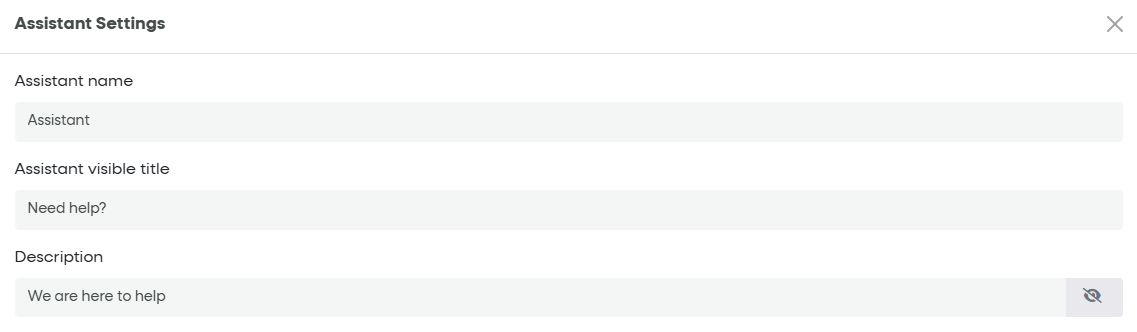
According to the filled fields above the assistant will look like in the picture below.

The Assistant list with differentiated names can look like the following picture.
