
When you have multiple Tours, Checklists, Assistants, or Surveys targeted at the same page, the Priority feature allows you to control the exact order in which they appear or auto-play.
For example, The following image displays a group of tours with their respective priority rankings.
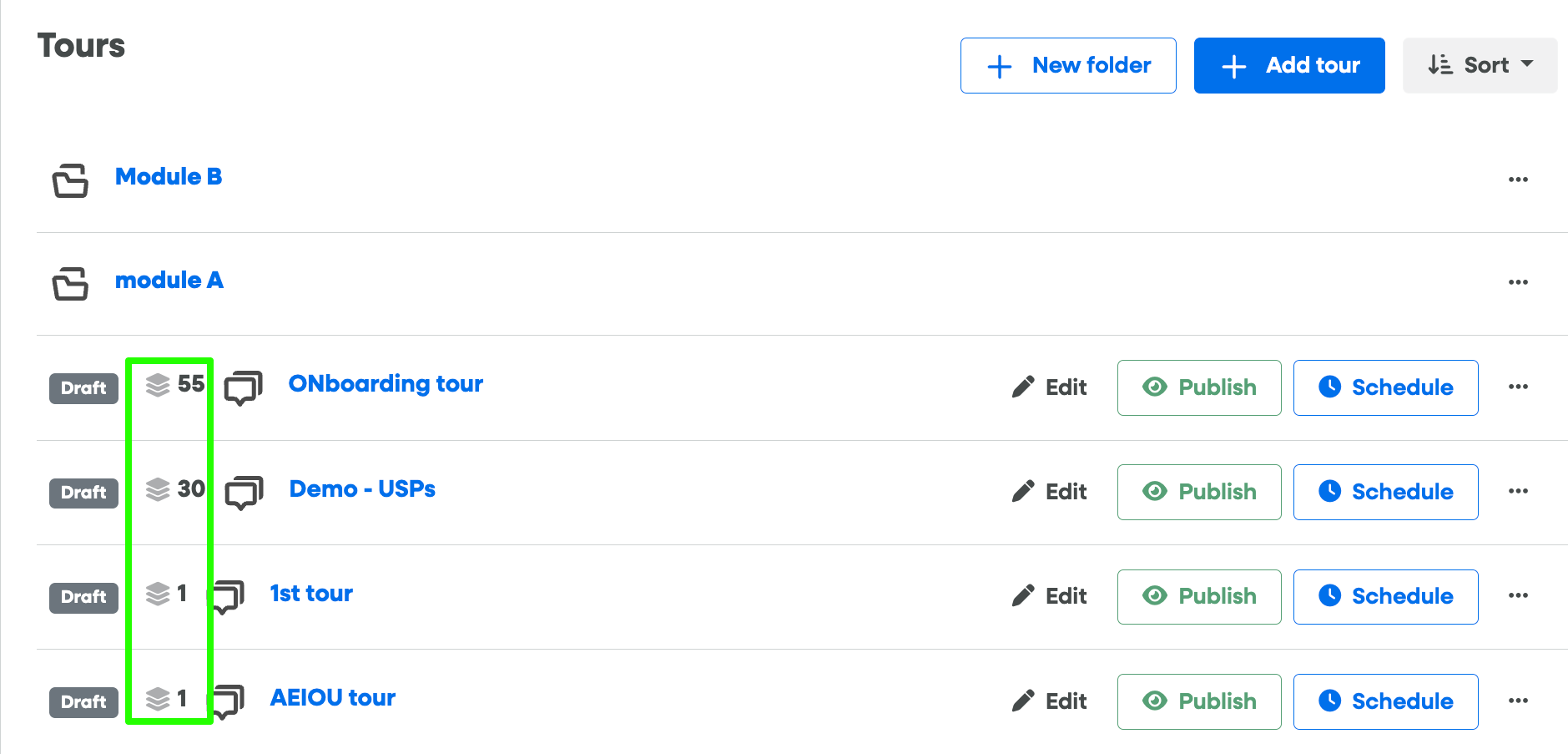
Default Priority Hierarchy
If you do not set a custom priority, the system automatically displays content in the following order (from highest to lowest):
Tours
Checklists
Surveys
Assistants
How to Access Priority Settings
To change the priority of a specific item, navigate to the Settings tab within that Tour, Checklist, Survey, or Assistant and locate the Priority field.
Note: The Priority feature is available exclusively for users on Premium or Enterprise plans.
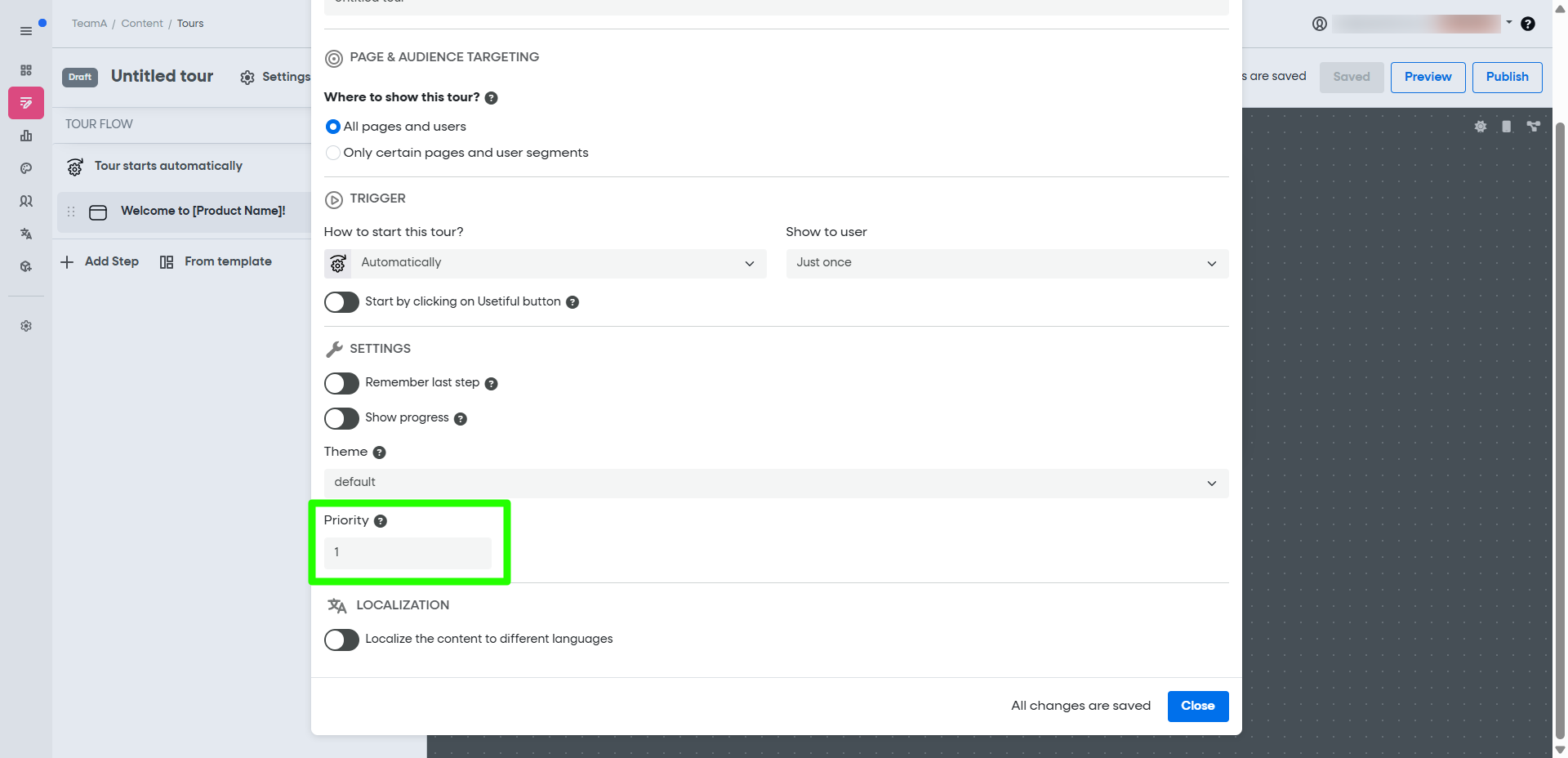
Key Rules and Tips
Higher Values Rank Higher: When multiple items are set to autoplay on the same page, the item with the higher numerical value takes precedence.
Example: An item with priority "2" will play before an item with priority "1."
Manual Triggers Over Autoplay: Any content triggered manually by the user (such as clicking a button or an element) will always override an autoplay tour, regardless of priority settings.
Active Tours Remain Priority: If a user is already in the middle of a tour, it will not be interrupted by a new autoplay tour, even if the new tour has a higher priority value.
Preventing Overlap: Use priority to ensure your users aren't overwhelmed by multiple pop-ups or tours appearing simultaneously on your dashboard.
Same-priority tie-breaking: When two items of the same content type share the same priority value, Usetiful shows one of them (selected arbitrarily) rather than showing none. Learn more