
Custom segmentation allows you to group users based on specific behaviors and attributes, enabling you to deliver highly personalized experiences. While Usetiful offers auto-generated segments, you can also build custom segments tailored to your specific goals.
! IMPORTANT Requirement: To use custom segmentation, you must define the
userIdtag in your installation. Learn more here.
Where to Find It
Navigate to the Users section in your Usetiful account, then select Segments.
How to Create a New Segment
Click the + Add Segment button in the upper-right corner.
Enter a Name and an optional Description for your segment.
Define the Conditions that users must meet to be included.
Note: You can combine multiple conditions to fine-tune your targeting.
Once finished, click Create to save.
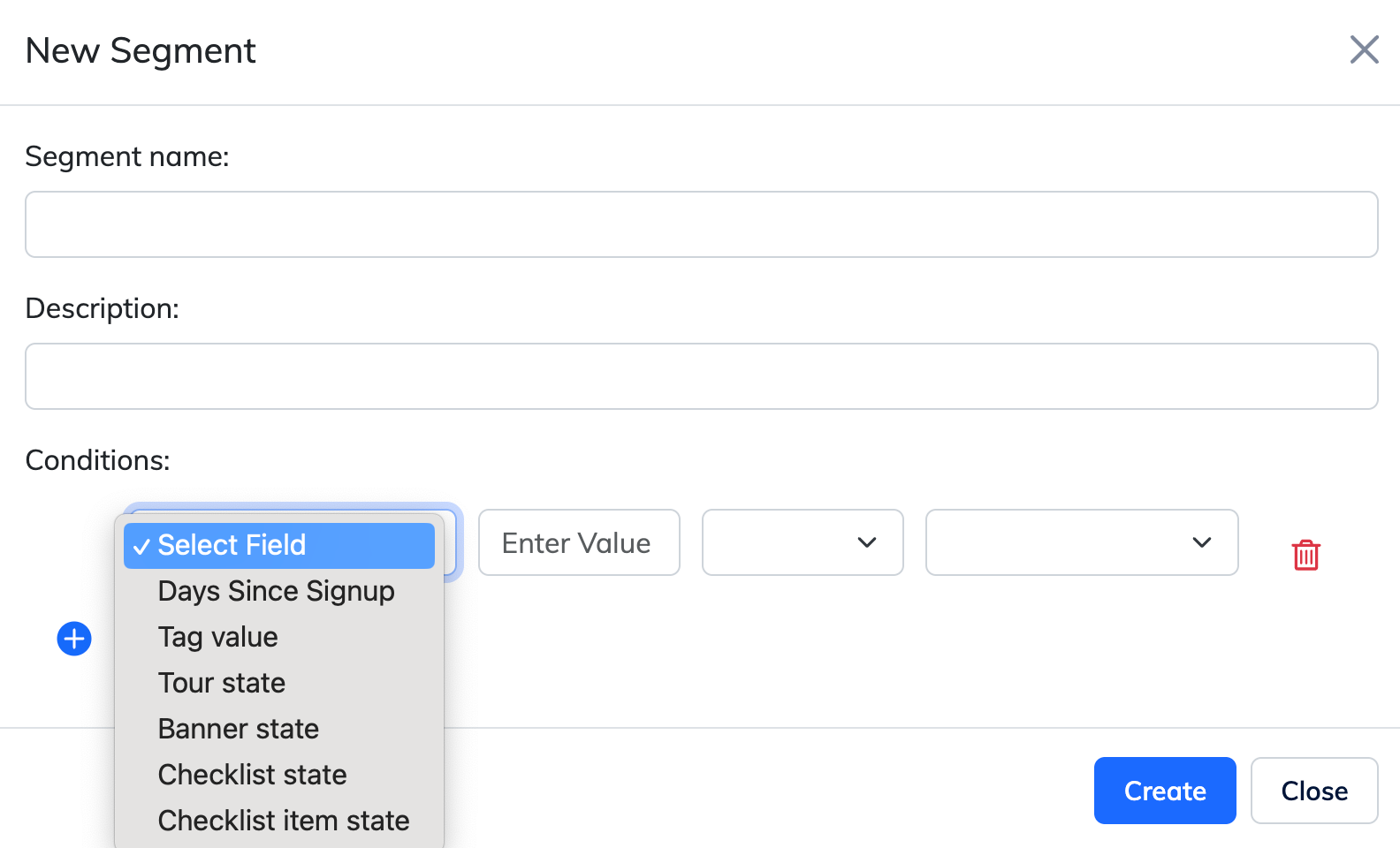
Available Condition Types
You can filter users using several data points:
| Condition Type | Description |
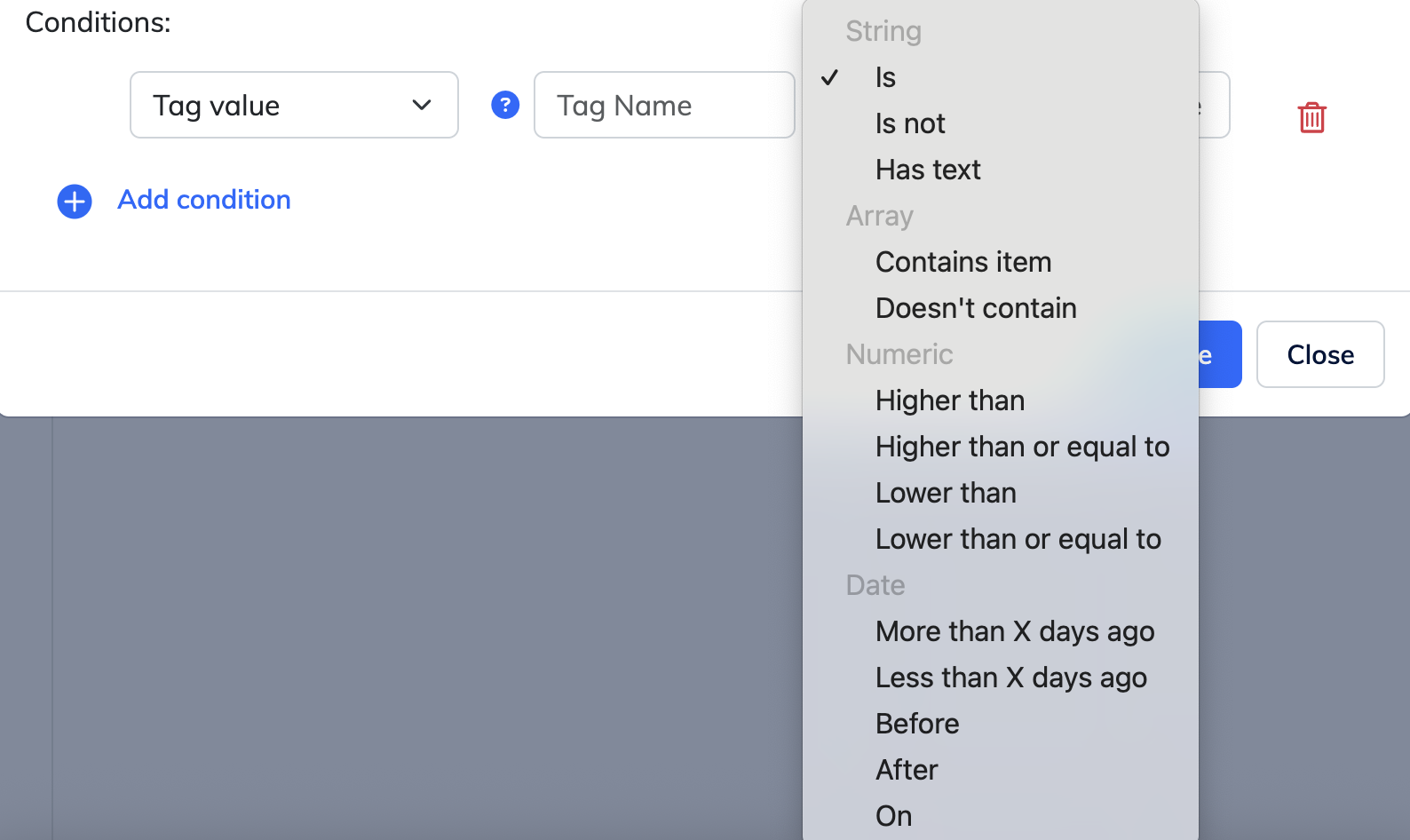
| Tag Value | Target users based on specific tags you’ve sent to Usetiful. You can set the rule using one of the following options: (see image below for reference) |
| Days Since Registration | Group users based on the number of days since they signed up. |
| Tour State | Filter by whether a user has completed a specific product tour. |
| Checklist State | Segment by the overall completion status of a checklist. |
| Checklist Item State | Target users based on the completion of a specific item within a checklist. |
| Banner State | Group users based on whether they have seen a specific banner. |
Managing Your Segments
Editing: Click the pencil icon next to any segment to update its name, description, or conditions.
Deleting: Click the bin icon to remove a segment. This action takes effect immediately and removes the segment association from all users.
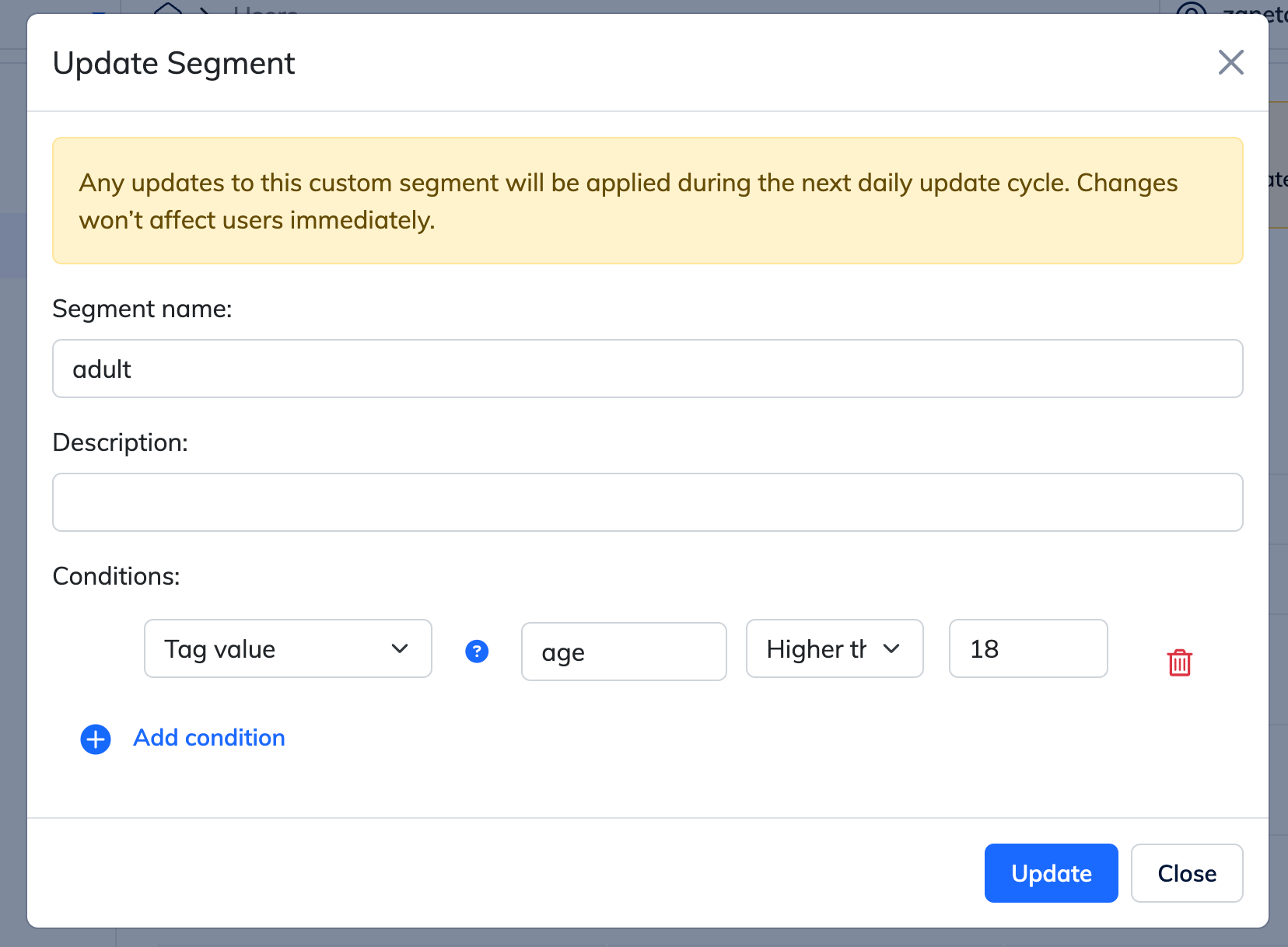
How Data Refreshes
Automatic Sync: Usetiful evaluates custom segment conditions every 4 hours. New users who meet the criteria will appear in the segment after the next scheduled sync.
Need an Instant Update? If you need to apply segments to users immediately without waiting for the 4-hour sync, use the Import feature in the Users section. View Import Guide.